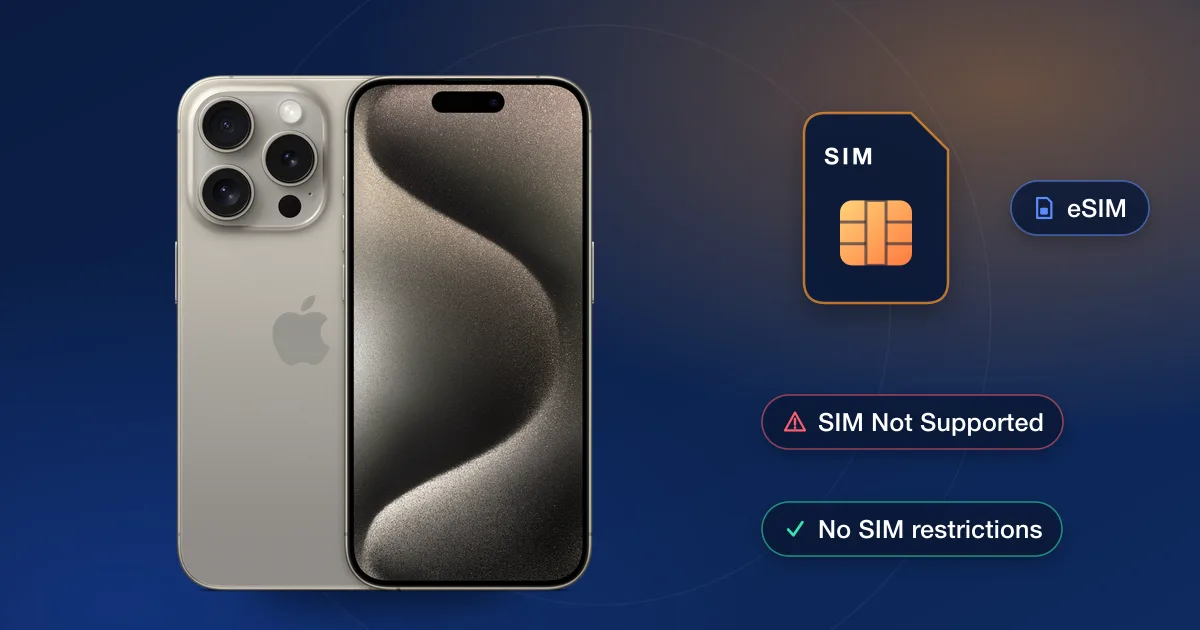
“SIM Not Supported” usually means the iPhone is carrier locked and the SIM you put in belongs to a different network. Apple can’t remove a carrier lock: only the carrier that locked the phone can, or you can use an IMEI unlock. Before you order anything, a two-minute check tells you whether a lock is really the cause — and whether the message on your screen is this one at all, because “Invalid SIM”, “No SIM Card installed” and “No Service” mean different things.
Match the message you see
| On the screen | What it usually means | Where to start |
|---|---|---|
| SIM Not Supported | The iPhone is locked to a carrier and this SIM is from another one. | Carrier Lock in Settings (below). Locked: the carrier’s own unlock, or an IMEI unlock. Unlocked: the SIM or the line. |
| Invalid SIM | The phone can’t use this SIM: no active plan on it, a SIM from a different phone or plan, a SIM that needs reseating, or a lock. | Apple’s steps: an active plan, Carrier Lock, restart, a carrier settings update, reseat the SIM, try another SIM; eSIM: contact the carrier. |
| No SIM Card installed | The phone doesn’t see a SIM at all. | Reseat the SIM and check the tray; on an eSIM-only iPhone, the line has to be added as an eSIM. |
| No Service, SOS or Searching | The SIM is fine; the phone isn’t connected to a network — coverage, an outage, the account, roaming or a setting. | Apple’s steps: Airplane Mode off and on, restart, carrier settings update, iOS update, the line switched on (dual SIM), roaming abroad, then the carrier about the account or an outage. |
What the message means
iPhones sold on contract or with financing are often locked to the carrier that sold them. A locked iPhone accepts that carrier’s SIMs and refuses others, and “SIM Not Supported” is how it tells you. Apple’s support page says it can’t unlock an iPhone for another carrier; the request has to go through the current carrier.
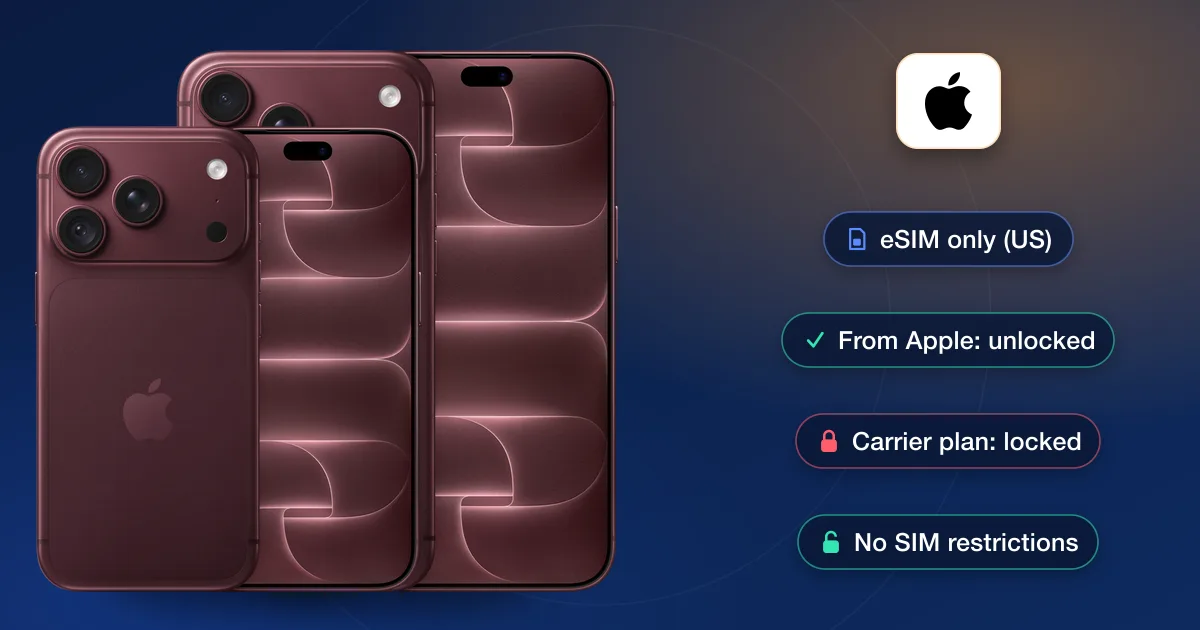
Recent US-model iPhones have no SIM tray and use eSIM only. The lock works the same way there: another carrier’s eSIM won’t activate on a locked phone. The message can also come from a SIM problem, a network the phone can’t use, or an iPhone that hasn’t finished activating, so check before you assume.
Quick checks first
- 1Look at Carrier LockSettings → General → About → Carrier Lock. “No SIM restrictions” means the iPhone is unlocked and the problem is elsewhere. Anything else means it is locked.
- 2Try a second SIMTest a SIM you know is active, ideally one from the phone’s original carrier. If that one works and others don’t, it’s a lock.
- 3Restart and updateRestart the iPhone and install any iOS update. Then reinsert the SIM and give it a minute to register.
- 4Check the SIM and lineMake sure the SIM is seated properly and not damaged, and that the line is active. Your new carrier can confirm it’s set up.
“No SIM restrictions” but it still fails
If Carrier Lock says “No SIM restrictions”, the phone is unlocked and something else is stopping the SIM:
- The unlock hasn’t been applied on the phone yet. Apple says that after a carrier confirms an unlock, inserting a SIM from the new carrier finishes it; with no other SIM to hand, you back up, erase and restore the iPhone instead.
- The line isn’t active yet, or the SIM was issued for a different phone or plan.
- The new network doesn’t support this model. Unlocking removes the carrier restriction; it doesn’t add network support the hardware lacks.
- The IMEI has been reported lost or stolen, so networks refuse it whatever the lock status. A blacklist check on our IMEI checks page will show this.
Fixing a real carrier lock
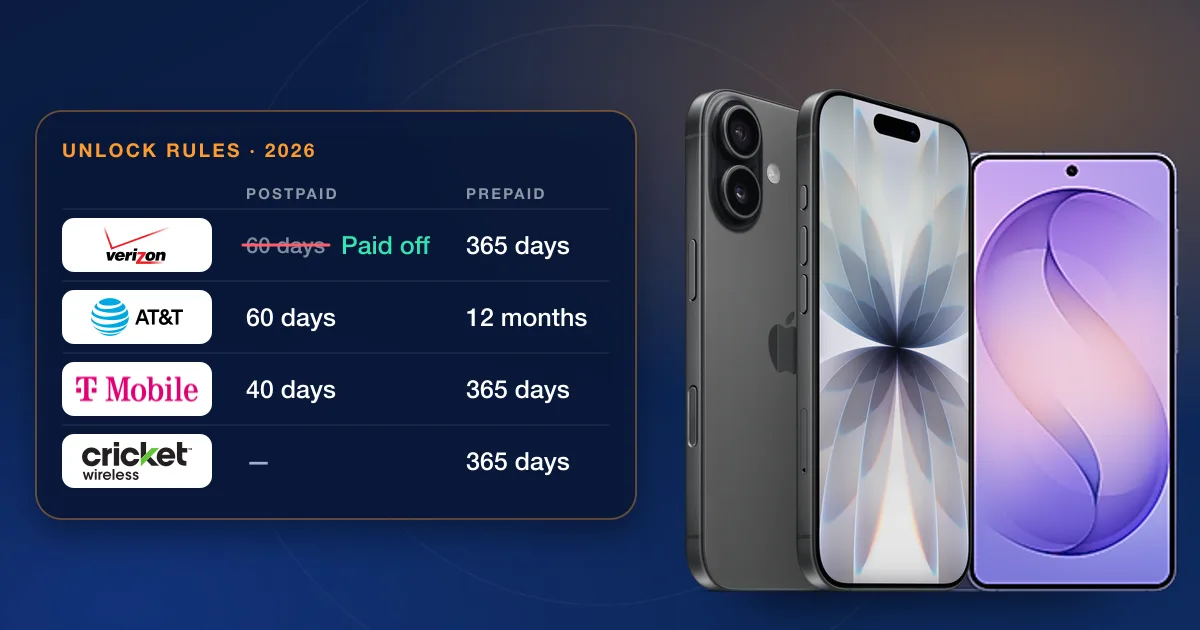
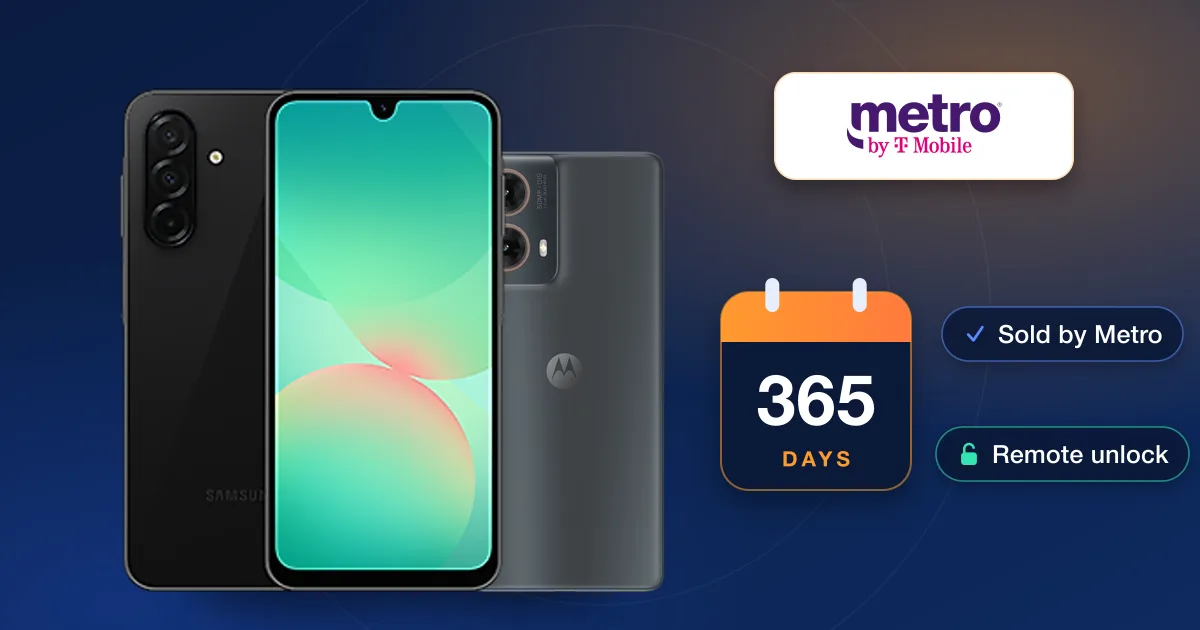
Start with the carrier that sold the phone. If the iPhone is paid off and the account is in good standing, the big US carriers unlock it for free under their own rules; our guide to unlocking an iPhone from AT&T, T-Mobile or Verizon covers those three.
If the free route is closed, because the phone isn’t in your name, was bought used, or isn’t eligible yet, an IMEI unlock is the alternative. Enter the IMEI and carrier in our order box to see the price and delivery estimate. If you aren’t sure which carrier the iPhone is locked to, an Apple report on our IMEI check page shows the carrier and lock policy first.