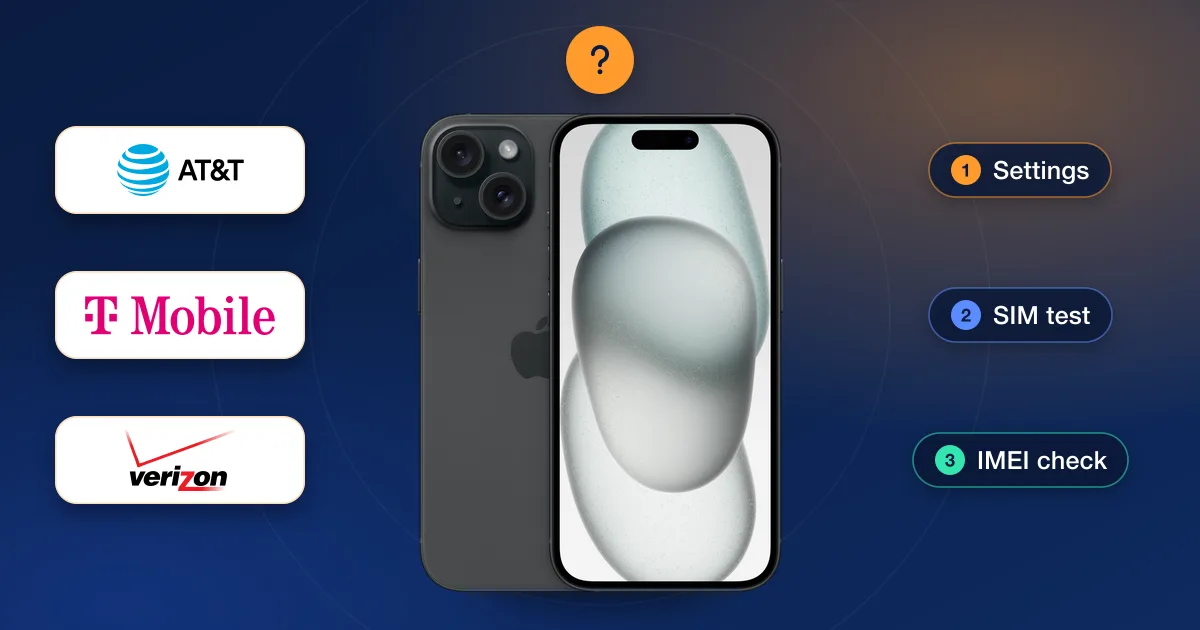
The quickest reliable answer comes from an IMEI carrier check, which reports the network a phone is locked to without needing a SIM or the original account. The phone’s own settings and a SIM test can confirm whether it is locked at all, and sometimes hint at the carrier. Here’s how to use all three, and why the answer matters before you order an unlock.
Why the carrier matters
A carrier unlock is ordered for the network the phone is locked to, which is the carrier that originally sold it, not the network you want to move to. An unlock ordered for the wrong carrier usually can’t be applied. That’s why every unlock on our site starts with picking the carrier, on the carriers page or in the order box.
Unless a phone was sold as unlocked, it’s safest to assume it’s locked, even if it came from a big retailer. Phones also change hands, and the SIM inside one today says nothing about where it came from.
1. Check the phone’s settings
On an iPhone, open Settings → General → About and find Carrier Lock. “No SIM restrictions” means the phone is unlocked. Any other message means it is locked, but that line doesn’t say which carrier it is locked to.
Android phones vary by maker, and many don’t show a lock status at all. On a Samsung Galaxy, Settings → About phone → Software information shows a “Service provider software version” containing a short carrier code, such as TMB for T-Mobile, VZW for Verizon or ATT for AT&T. It’s a useful hint about where the phone started, not proof of the current lock.
2. Try a SIM from another carrier
Borrow an active SIM from a different network, power the phone off, swap it in and turn it on. What you see tells you whether the phone is locked:
| What you see | What it usually means |
|---|---|
| The phone connects and shows the new network | Unlocked |
| iPhone: “SIM Not Supported” or “SIM Not Valid” | Locked, or the new SIM isn’t active |
| Android: “SIM network unlock PIN” or a request for a network unlock code | Locked to another carrier |
| No service and no message | A lock, an inactive SIM, a network the phone doesn’t support, or a reported IMEI |
A SIM test confirms a lock, but it rarely names the carrier, and an inactive or damaged SIM can look like a lock. Treat it as a first check, not the final answer.
3. Run an IMEI carrier check
An IMEI check looks the phone up by its IMEI and reports the carrier details on record. Dial *#06# to see the IMEI (more ways are in our IMEI guide), then pick a check on our IMEI check page: Apple reports include the carrier and lock policy, and Samsung reports include the carrier. Every check we offer is on the IMEI checks list.
You don’t need the phone’s account or a SIM, only its IMEI. That makes an IMEI check the best option for secondhand phones and for batches of trade-ins.
Reading the result
- Locked to one carrier: order the unlock for that carrier, or ask that carrier for a free unlock if you qualify. See is my phone eligible for unlock.
- Unlocked: the lock isn’t your problem. If a SIM still fails, look at the SIM itself, network support, or whether the phone has been reported lost or stolen.
- A carrier you didn’t expect: phones are often resold across networks and countries. Trust the check over the SIM that’s in the phone today.
- A carrier but no clear lock status: some records name the carrier that sold the phone without saying whether the lock is still on. Confirm it with the settings or SIM test above.